2.2-1: Animation
This module covers animating sprites by teaching different actions the user can do with sprites: collisions, movement, and setting visibility.
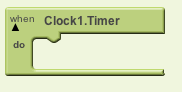 Every Clock component has an internal Timer that whenever it goes off, calls the Clock.Timer event shown in the image above. The Timer will go off after some amount of time specified in the Clock's Properties on the Designer Screen which is measured in milliseconds. TimerInterval can be adjusted to make the Timer go off after different amounts of time. TimerInterval can be found in the Clock's Properties on the Designer Screen. It takes in a number that specifies the number of milliseconds between each time the Clock.Timer event is called.
In games, we often use the Clock.Timer event to tell sprites when to move. We also can use the Timer event to specify when the user has run out of time to finish the game.
Every Clock component has an internal Timer that whenever it goes off, calls the Clock.Timer event shown in the image above. The Timer will go off after some amount of time specified in the Clock's Properties on the Designer Screen which is measured in milliseconds. TimerInterval can be adjusted to make the Timer go off after different amounts of time. TimerInterval can be found in the Clock's Properties on the Designer Screen. It takes in a number that specifies the number of milliseconds between each time the Clock.Timer event is called.
In games, we often use the Clock.Timer event to tell sprites when to move. We also can use the Timer event to specify when the user has run out of time to finish the game.
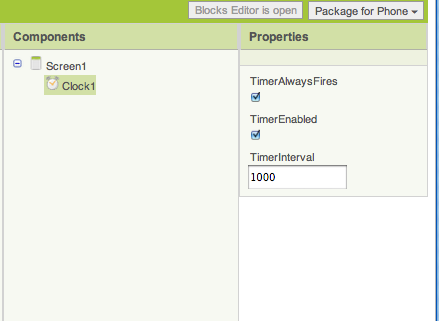 We've seen before that sprites have a Speed. Speed is measured in pixels. Sprites also have an Interval. Interval is measured in milliseconds.
Internally, whenever a sprite's Interval goes off, it will be moved speed amount of pixels across the screen in the direction that its heading is pointing. So the sprite is moving at (Sprite.Speed / Sprite.Interval ) pixels/ms. Let's look at this example:
We've seen before that sprites have a Speed. Speed is measured in pixels. Sprites also have an Interval. Interval is measured in milliseconds.
Internally, whenever a sprite's Interval goes off, it will be moved speed amount of pixels across the screen in the direction that its heading is pointing. So the sprite is moving at (Sprite.Speed / Sprite.Interval ) pixels/ms. Let's look at this example:
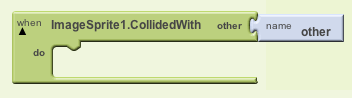 ImageSprite1.NoLongerCollidingWith event will be called.
Setting Visibility
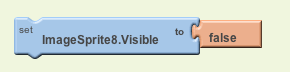
Sprites can be set to invisible if you no longer want to see them in your app anymore. If already invisible, you can also set them back to visible. This is from setting Sprite.Visible to false.
Using the Clock Component
The Clock is a component found under the Basic box. The main reason why Clock is useful for game development is its Timer.
Every Clock component has an internal Timer that whenever it goes off, calls the Clock.Timer event shown in the image above. The Timer will go off after some amount of time specified in the Clock's Properties on the Designer Screen which is measured in milliseconds. TimerInterval can be adjusted to make the Timer go off after different amounts of time. TimerInterval can be found in the Clock's Properties on the Designer Screen. It takes in a number that specifies the number of milliseconds between each time the Clock.Timer event is called.
In games, we often use the Clock.Timer event to tell sprites when to move. We also can use the Timer event to specify when the user has run out of time to finish the game.
We've seen before that sprites have a Speed. Speed is measured in pixels. Sprites also have an Interval. Interval is measured in milliseconds.
Internally, whenever a sprite's Interval goes off, it will be moved speed amount of pixels across the screen in the direction that its heading is pointing. So the sprite is moving at (Sprite.Speed / Sprite.Interval ) pixels/ms. Let's look at this example:
Collisions
When two objects touch each other, we call this a collision. All sprites have a collision event handler to detect when they have hit another sprite. We can use this event handler to detect collisions between sprites.ImageSprite1.NoLongerCollidingWith event will be called.
Let's Try it Out!
For additional help using animation in App Inventor, check out the reference documentation here .
For more practice using the Clock component and learning about how to use the sprites on a timer, complete the GetTheGold app using the tutorial below.
App Exploration: GetTheGold
MIT App Inventor

 © 2012-2025 Massachusetts Institute of Technology

This work is licensed under a Creative Commons Attribution-ShareAlike 4.0 International License.
Terms of Service and Privacy Policy
App Inventor Support: Community
Other inquiries: Email
GitHub: mit-cml
Accessibility: accessibility.mit.edu




Other inquiries: Email
GitHub: mit-cml
Accessibility: accessibility.mit.edu