You built an app. Now you want it on your phone — to use every day, to show a friend, to hand in for class. There are three ways, and the first one works on both iPhone and Android in about two seconds.
The purple button: save it in the Companion
The MIT AI2 Companion app can now keep a copy of the app you are testing. Saved apps live in Companion’s library, behind the purple button, and open any time — with no internet connection, and without building or packaging anything.
This is the fastest way to keep an app, and the only one that works the same way on iPhone and Android.
How to do it
- Open your project in App Inventor and connect to the AI2 Companion as usual.
- While your app is running in Companion, tap the book icon at the top right of the screen. That saves the app on the phone. Same icon on iPhone and Android.
- To open it later, start Companion and tap the purple my saved apps button. Pick your app from the list and it runs — online or off.
Teaching with this? Students can save their finished apps at school and show them at home, even where there is no Wi-Fi and no data. Nobody needs a developer account, and nothing has to be installed.
Android: build an installable app (.apk)
To put an app on an Android phone as a permanent app — one that runs without Companion and can be passed to other people — build it into an installable file.
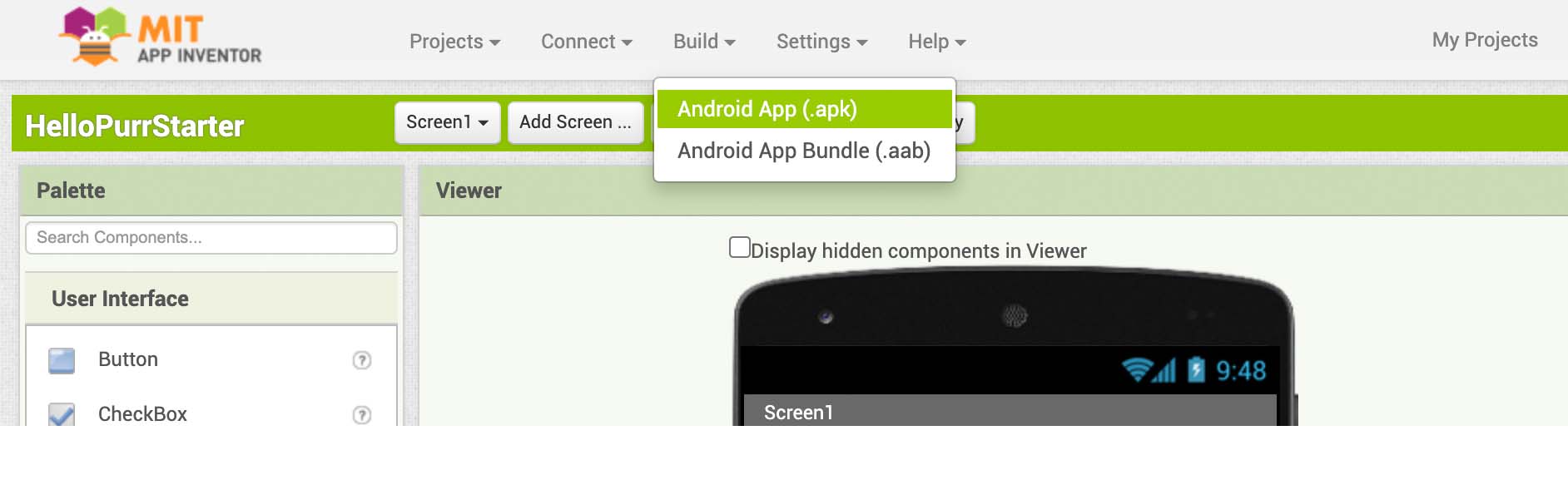
- Open the Build menu on the App Inventor toolbar.
- Choose Android App (.apk). A progress bar appears while App Inventor packages your app, then the file downloads to your computer. (Android App Bundle (.aab) is the format Google Play wants if you plan to publish there; for sharing an app yourself, pick .apk.)
- Move the .apk to the phone — a cable, a cloud drive, or a download link all work — and open it on the phone to install.
Two things people run into: many mail services block .apk attachments, so share a link rather than an email attachment; and the person installing it will have to allow apps from outside the Play Store in their phone's settings.
iPhone and iPad: packaging is harder, and that is Apple's doing
On iOS you can create, test and share apps freely with Companion — including the purple button above. What is harder is packaging an app into an installable file (.ipa) that lives on the phone by itself or goes to the App Store. Apple requires a paid developer account and a signing process that App Inventor cannot do for you.
The current process is written up in Building iOS apps, and the iPhone and iPad page covers what does and does not work on iOS today.
For most people on iOS — and for every classroom we know of — the purple button is the answer: the app lives in Companion, it opens offline, and it costs nothing.
Which one do I want?
- I want my app on my phone, today, on any phone. Purple button.
- I want to give my app to other people with Android phones. Build an .apk.
- I want to publish on the Play Store. Build an .aab.
- I want to publish on the App Store. You will need an Apple developer account; start with the iOS build documentation above.
Also worth knowing: you can share the project code itself, so someone else can open your app in App Inventor, see how it works and change it.