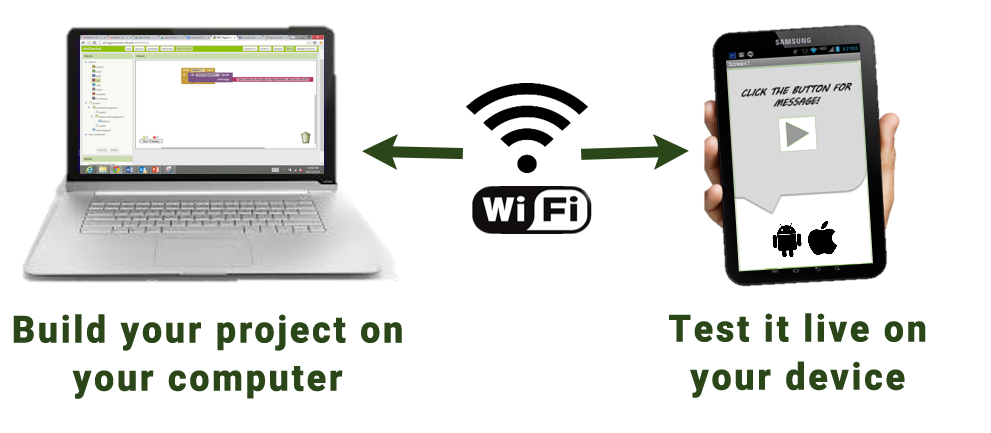
To test your app as you create it, follow these steps to install the MIT App Inventor Companion app on a phone or tablet:
Step 1: Download and install the MIT App Inventor Companion app on your Android or iOS device.
Open the Google Play store or Apple App store on your phone or tablet, or use the buttons below to open the corresponding page:
 |
 |
|---|
After downloading, step through the instructions to install the Companion app on your device. You need to install the MIT App Inventor Companion app only once, and then you can leave it on your phone or tablet for whenever you use App Inventor. Note: There are some differences between the Android and iOS versions. Please review this page for more details.
Alternatively, you can scan the following QR codes to get either the iOS or Android app:
-
For iOS, scan this code to go to the Companion app on the Apple App Store.
-
For Android, scan this code to download the Android .APK file for the Companion app directly to your device. (Using an .APK file requires sideloading the app on your device and updating the app manually in the future.)
Step 2: Connect both your computer and your device to the SAME Wi-Fi network
App Inventor will automatically show you the app you are building, but only if your computer (running App Inventor) and your device (running the Companion) are connected to the same Wi-Fi network. See a more detailed explanation of this here.
Step 3: Open an App Inventor project and connect it to your device
Go to App Inventor and open a project (or create a new one — use Project > Start New Project and give your project a name).
Then Choose “Connect” and “AI Companion” from the top menu in your browser:

A dialog with a QR code will appear on your PC screen. On your device, launch the MIT App Companion app just as you would do any app. Then click the “Scan QR code” button on the Companion, and scan the code in the App Inventor window:
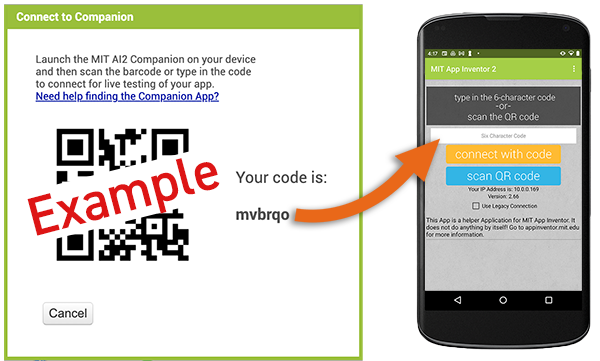
Within a few seconds, you should see the app you are building on your device. It will update as you make changes to your design and blocks, a feature called “live testing.”
If you have trouble scanning the QR code or your device does not have a scanner, type the code shown on the computer into the Companion’s text area on your device exactly as shown. The code is directly below where the screen on your PC shows “Your code is” and consists of six characters. Type the six characters and choose the orange “Connect with code.” Do not type an Enter or carriage return: type just the six characters followed by pressing the orange button.
Troubleshooting:
If your app does not appear on your device, the most likely problems are:
- You may have an outdated version of the App Inventor Companion App. Download the latest Companion App above.
- Your device may not be connected to Wi-Fi. Make sure you see an IP address at the bottom of the AI Companion App screen on your phone or tablet.
- Your device may not be connected to the same Wi-Fi network as your computer. Make sure both devices are connected to the same wifi network name.
- Your school or organization may have network protocols in place such that the wifi connection is not allowed. If this is the case, you can still use App Inventor with the emulator, or you can use a USB cable to connect your device. Go back to the main setup page for these options.